

WaveKat Voice — the SIP softphone for Mac and Linux that records and transcribes every call — can now answer your incoming calls for you. A call flow is the thing that answers: it greets the caller, checks whether you’re open, offers a menu, rings you, takes a message, or transfers the call on. You build the flow on the web, point it at one of your phone lines, and from then on the calls you can’t get to still get answered. It lands in 0.0.43.
This is the biggest step yet toward the thing we keep coming back to: giving every small business the voice of a big one. A big company answers every call — there’s a receptionist, a phone menu somebody paid a consultant to build, an after-hours service. A three-person shop has a phone that rings until someone can wipe their hands, and a caller who gives up is a booking that never happened. Call flows close that gap, and they run on the computer already sitting on your desk.
What a call flow is
A flow is a short list of steps, and the call walks through them. Each step is a building block with one job:
| Step | What the caller experiences |
|---|---|
| Greeting | Hears your recorded greeting — “Thanks for calling Luigi’s.” |
| Business hours | Nothing directly: the flow checks your weekly schedule and holidays, and takes a different path when you’re closed. |
| Menu | ”Press 1 for bookings, 2 for opening hours.” Their keypress picks the next step. |
| Rings you | Your phone rings, exactly as it does today. Answer and the flow steps out of the way. |
| Takes a message | A prompt, a beep, and their message — recorded and transcribed like any other call. |
| Transfers the call | Gets put through to another number. |
| Hangs up | Hears a goodbye, and the call ends. |
There’s no menu tree to draw from scratch and nothing to program. You start from a template — a gallery of ready-made flows, offered in your own language, that you copy into your account — and change the words. A blank flow is there too, if you’d rather build it yourself.
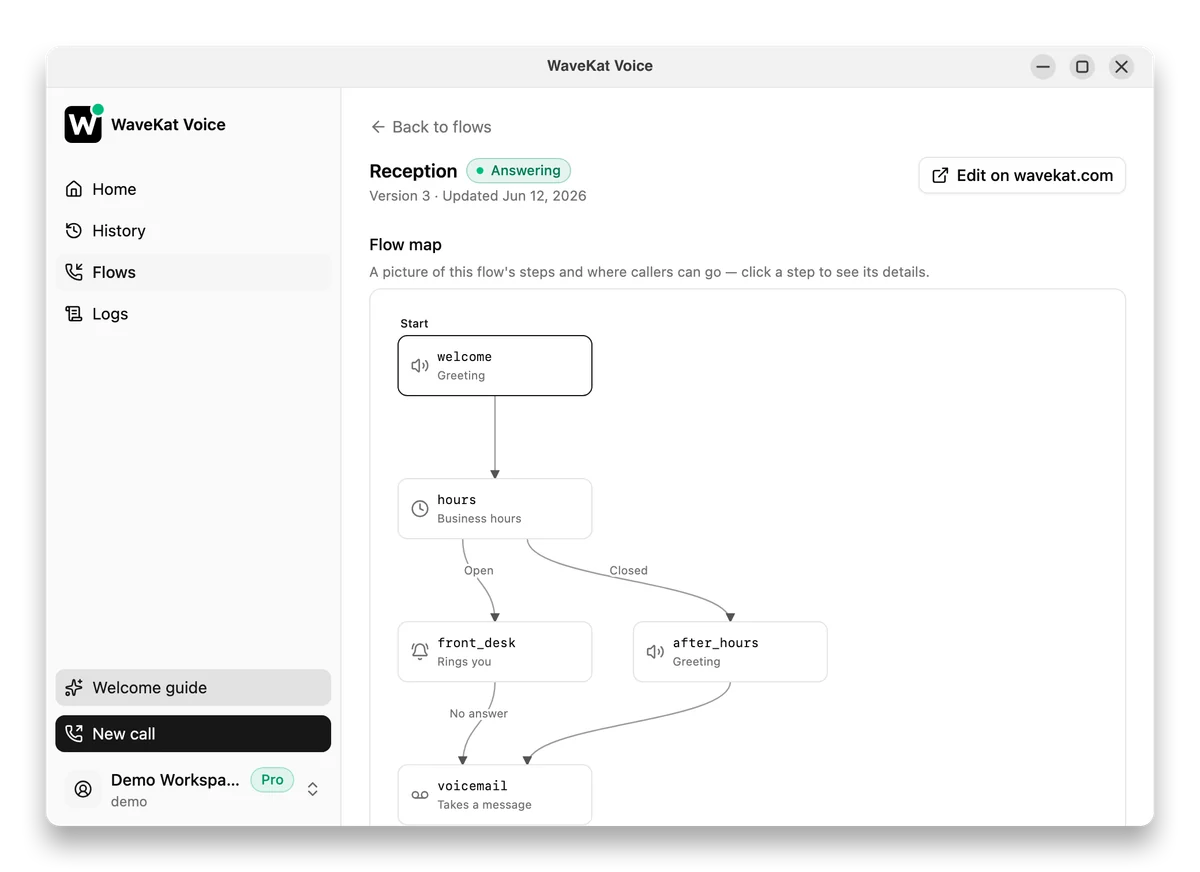
The app draws the flow as a map, so “what happens when someone calls” is a picture you can point at rather than a list of rules you have to hold in your head.
Build it on the web, run it on your computer
Flows are authored at platform.wavekat.com/voice/flows, signed in with the same WaveKat account the app uses. Pick a template, fork it into your library, and edit: type what callers should hear at each step, set your opening hours, decide how long the phone rings before the flow takes a message.
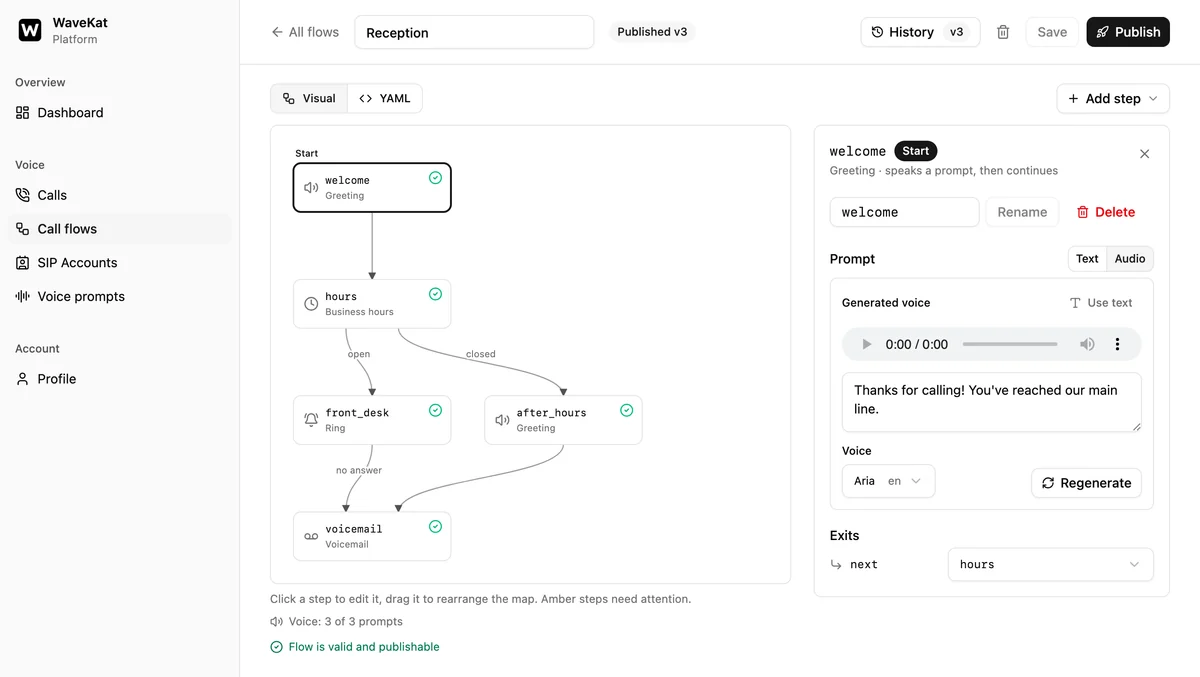
You don’t have to record anything. Type the words and pick a voice, and the platform generates the audio with the same voice prompt generator that’s free to use on its own — studio-quality speech, in the format phone systems want. One press voices every step in the flow at once, so a template becomes your greeting in about a minute. When you press Publish, that version of the flow is frozen: its wording, its settings, and its audio clips are locked together and can’t drift underneath you.
The published flow then shows up in the app’s new Flows section, on every computer you’re signed in on. Open it, choose which of your lines it should answer, and switch it on. The line’s card reads Answering, and that’s the setup finished — no forwarding to set at your provider, no number to port anywhere.
Flows run on your computer, inside the app, using the SIP account you already have. Nothing about the call is answered on our servers: the greeting is played from your machine, the message is recorded on your machine, and it costs nothing per call because nobody else is in the middle of it. The trade is the honest one — the app has to be running and the computer awake for the flow to pick up, and one computer answers for a given line.
Watch it answer, live
The part we’re most pleased with isn’t the answering — it’s that you can see it happen.
When a flow answers, the app doesn’t pretend you’re on a call. The screen says “Reception is answering” with a line telling you what’s happening right now: Speaking to the caller… Playing the menu… Ringing you… Taking a message…
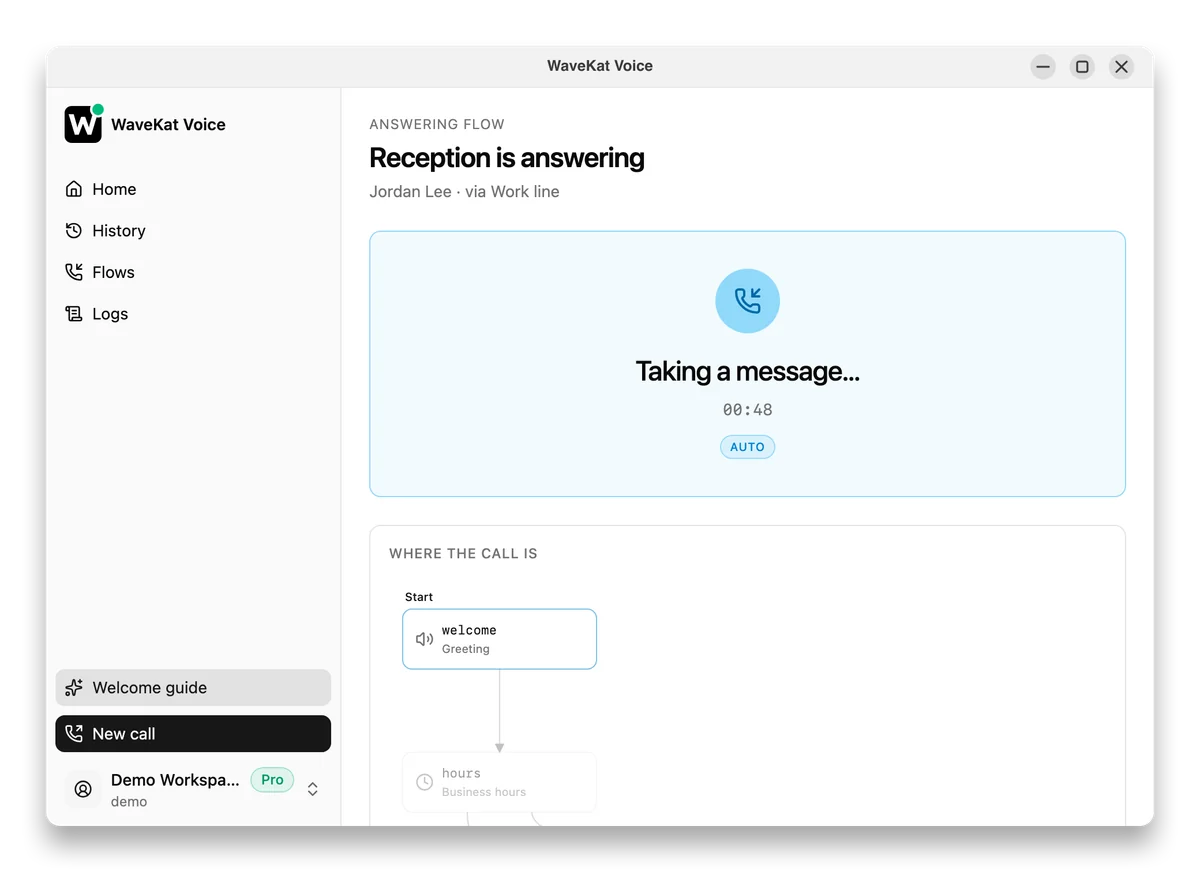
Below it, the same flow map you built lights up as the call travels through: the step the caller is on right now glows, the ones they’ve already passed stay bright, and the rest stay dim. You can see where they are and where they’ve been at a glance.
That’s call screening, and it’s different from the voicemail you’re used to. A carrier mailbox answers with nobody watching; you find out hours later. Here the flow answers on your behalf while you’re sitting right there — so you get the old landline answering-machine experience back, where you hear who it is before you decide.
Take over mid-message
Because you’re watching, you can grab the call. While a caller is leaving a message, the app shows a Pick up button: press it and the call moves onto your microphone and speakers, exactly like a call you’d answered yourself. The message that was recorded up to that point is kept.
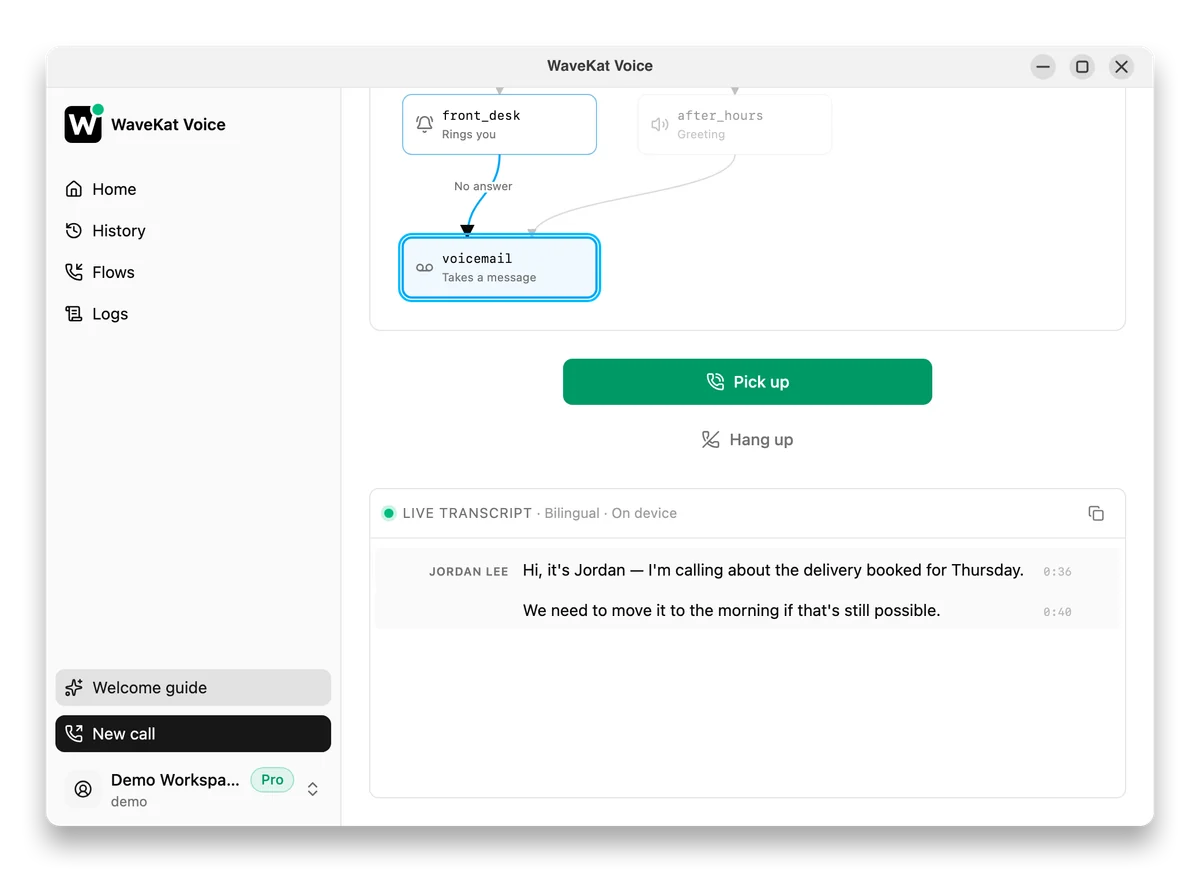
And you don’t have to guess whether it’s worth taking: the message appears as text while it’s being left, so you can read who it is and what they want before you decide.
Pick up only appears at the moments where a human joining makes sense to the caller — while they’re leaving a message, not halfway through your greeting or in the middle of a menu prompt. Nobody wants a voice to cut in over the recording that’s still talking to them.
After the call
A flow-answered call lands in your history like any other, with the flow’s name on it — Answered by “Reception” — so you can tell at a glance which calls you handled and which the flow did. Open one and the summary tells you how it ended in plain words: The caller left a message, with a link to the flow that took it.
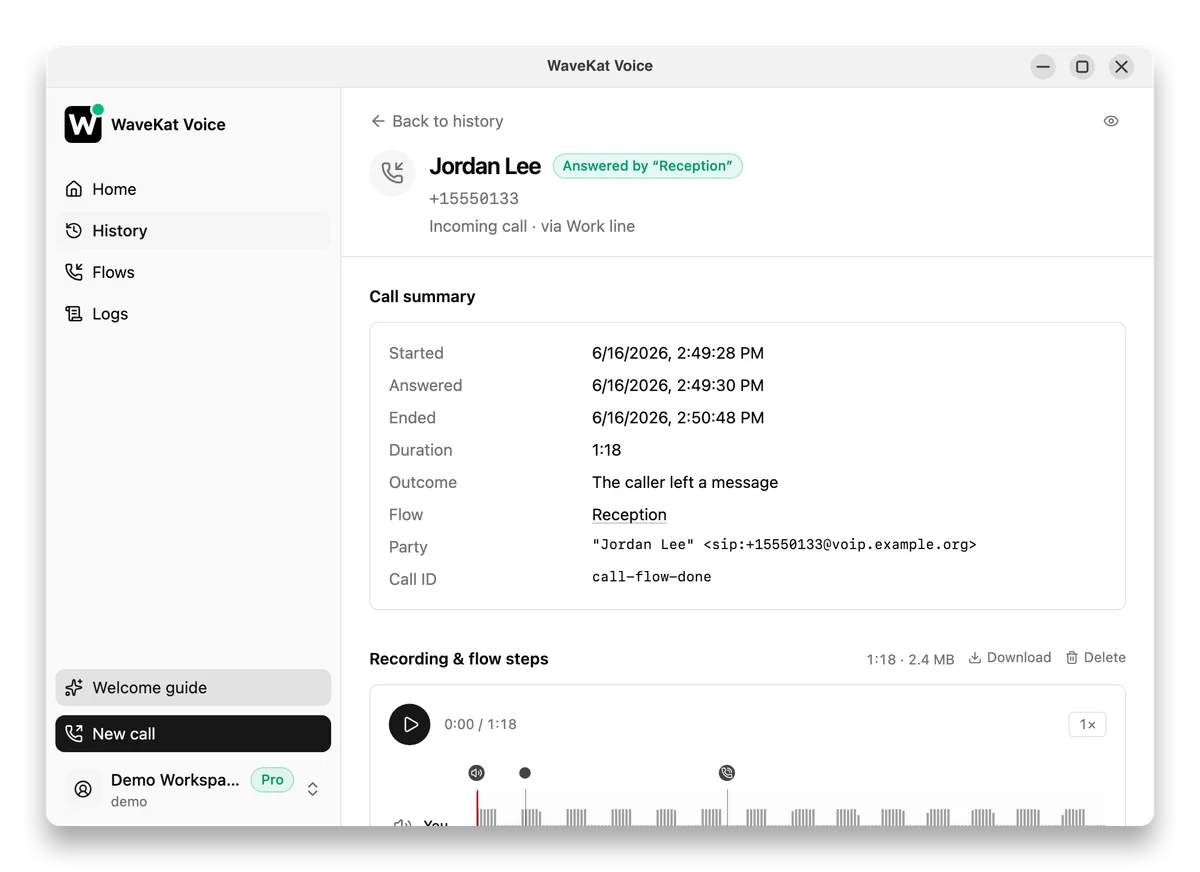
The message itself is a recording and a transcript, in the same place as everything else — and the flow’s steps are pinned along the recording, so you can jump straight to the moment the caller started talking instead of scrubbing for it. It’s searchable, and shareable with a link if someone else needs to hear it.
What’s free, and what Pro adds
The line we drew is simple: Free answers the phone. Pro routes the call.
| Free | Pro | |
|---|---|---|
| Steps you can use | Greeting, rings you, takes a message, hangs up | All of the above, plus business hours, menu, and transfer |
| Published flows | 1 | 10 |
So a Free account gets a complete answering machine with your own greeting, your own wording, live screening and take-over — not a teaser. Pro is for when you want the flow to make decisions: different handling after hours, a menu that sends callers where they need to go, calls put through to another number. During early access, upgrading to Pro is free — one click on your WaveKat account page, no payment step — and it gives you a year. Your plan and its expiry are shown in the app under Settings.
Frequently asked questions
What is a call flow in WaveKat Voice?
A call flow is a set of steps that answers your incoming calls automatically — a greeting, a check of your business hours, a phone menu, ringing you, taking a message, or transferring the call. You build it on the web at platform.wavekat.com, point it at one of your phone lines, and the WaveKat Voice app on your computer runs it when a call comes in.
Does my computer have to be on for a flow to answer?
Yes. Flows run inside the app on your own computer, not on a server, so the computer needs to be awake with WaveKat Voice running. That’s what makes it free per call and keeps the audio on your machine — but it also means a sleeping laptop won’t answer. One computer answers for a given line, so signing in on a second machine doesn’t cause double answers.
Can I still pick up a call the flow answered?
Yes, while the caller is leaving a message. The app shows what the flow is doing live, with a Pick up button during the message; press it and the call comes to your microphone and speakers, with the part already recorded kept. Pick up is deliberately not offered mid-greeting or mid-menu, so a human never cuts in over a prompt that’s still playing.
Do I have to record the greeting myself?
No. You type what callers should hear and pick a voice, and the platform generates telephony-ready audio with the WaveKat voice prompt generator — one press voices every step in the flow. Change the wording later and you regenerate that step; the published version keeps playing the old audio until you publish again.
What happens to a message a caller leaves?
It’s recorded and transcribed on your computer like any other call, and it appears in your history marked with the flow’s name and how the call ended. From there you can play it, read the transcript, jump to a step the flow took, or share it with a private link.
Is this an AI receptionist that talks to callers?
Not yet — and we’d rather say so plainly. Today’s flow steps are the predictable ones: greeting, hours, menu, ring, message, transfer. They do exactly what you wrote, every time. An assistant step that holds a real conversation with the caller is the next milestone, and it will be one more block you drop into the same flow.
Does it work with my SIP provider?
Yes, with the account you already have in WaveKat Voice. Flows answer calls the app is already receiving, so if your line rings the app today, a flow can answer it — no provider-side forwarding, no extra number, no per-minute answering-service fee.
Which platforms support call flows?
Mac and Linux, the two platforms WaveKat Voice runs on today, with Windows coming when there’s demand. Authoring works in any browser, since flows are built on the web and synced to the app.
Try it
Download WaveKat Voice — or update to 0.0.43 — sign in, and build your first flow at platform.wavekat.com/voice/flows. Start from a template, change the words, publish, and point it at your line.
Then let the next call come in and watch it get answered. You’ll still see who it is, and you can still take it — that’s the point. You’re just no longer the only thing standing between a caller and an answer.